
Why Are My Gmail Emails Going to Spam? The Fix-First Order for Freelance Cold Pitches
A good chunk of the usual guidance assumes you own a domain and send in bulk. Here is the version written for a single person working from a personal @gmail.com address.
You send ten thoughtful pitches to local businesses from your regular Gmail account, and the replies never come. Then a friend you used as a test says your note landed in spam. So you type “why are my Gmail emails going to spam” into search and turn up lists of a dozen or so culprits, nearly all of them telling you to configure SPF, DKIM and DMARC on your domain.
But there is no domain here. What you have is an @gmail.com address. Much of that guidance simply isn’t yours to act on, and whatever remains arrives without any priority, so you tweak five things at once and come away none the wiser.
What follows is written for one person hand-sending twenty or thirty emails a day from a personal Gmail account: which items you can ignore, how to pin down what is genuinely broken, and which fix belongs first.
What page 1’s cold email deliverability advice gets wrong for a @gmail.com sender
Nearly every cold email deliverability guide is produced by a vendor of sending software, aimed at sales teams that mail from their own domains in bulk. Viewed from a personal Gmail account, much of it is simply nothing you can act on.
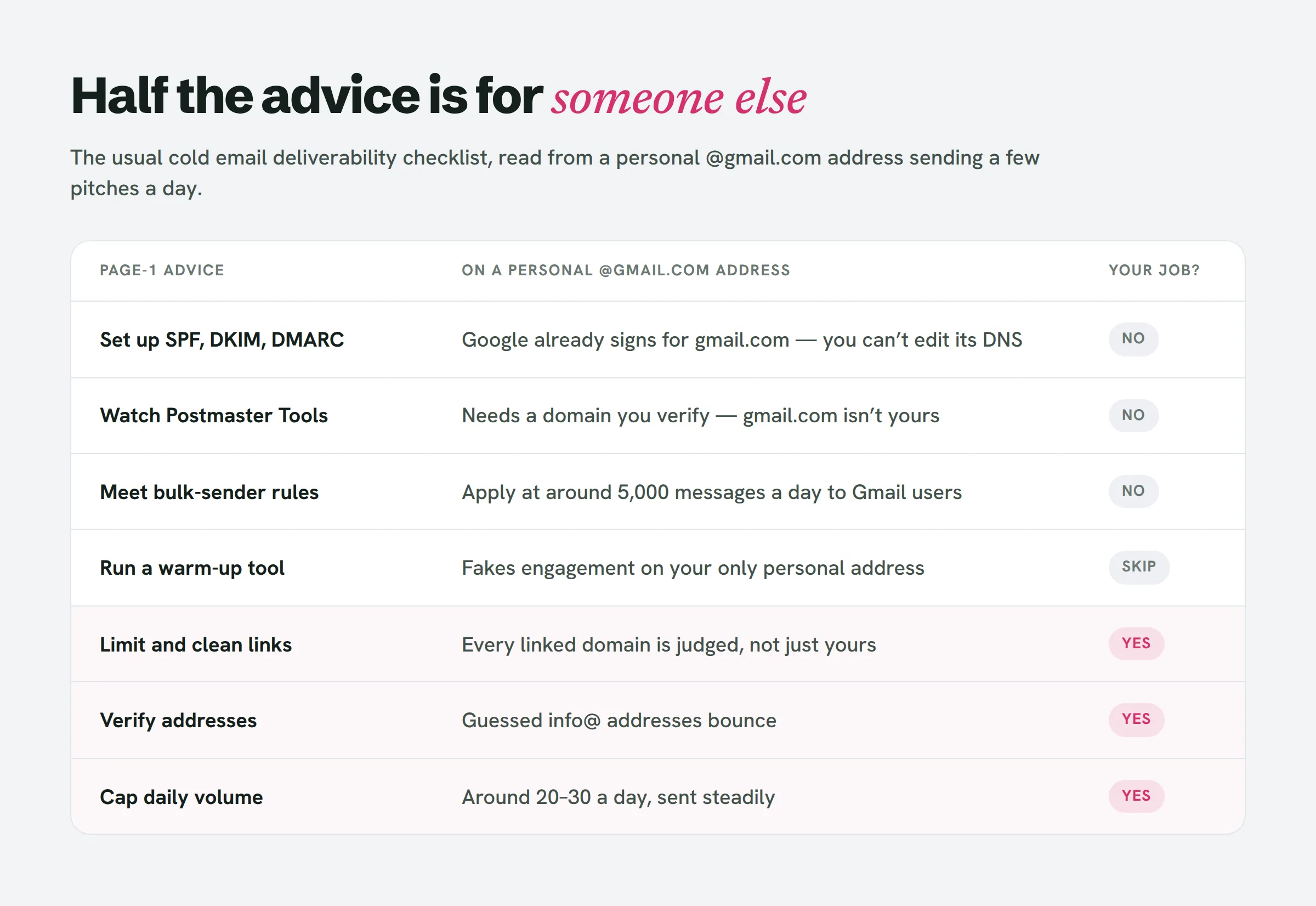
- SPF, DKIM and DMARC. Sending from @gmail.com through Gmail means Google’s own servers sign the message for gmail.com. There are no DNS records for you to add to gmail.com, and none you need to. When your mail ends up in spam, authentication isn’t the reason.
- Google Postmaster Tools. It reports only on domains you’ve verified via DNS. Since gmail.com isn’t yours to verify, there’s no dashboard and no spam-rate figure for you. Measuring placement is something you’ll have to do on your own (see below).
- Bulk-sender rules. Google’s added demands (DMARC, one-click unsubscribe) only apply once you’re pushing roughly 5,000 messages a day to Gmail users. That isn’t your situation.
- Warm-up tools. They wire your inbox into a network that trades fake messages and manufactures engagement. At least one cold email vendor ranking on page 1 now warns people off them. For your single personal address, that’s risk without any obvious payoff.
What remains is everything under your control: the links you include, the addresses you write to, whatever is buried inside the email, your volume and speed, how alike the messages are, and whether recipients hit “Report spam.”
How to check if my emails are going to spam: a four-inbox seed test
Hold off on changing anything until you can actually see where your email settles. No paid tool is required. What you need are four inboxes that have never received a word from you:
- A freshly made personal Gmail account.
- An account on Outlook.com.
- A work address on Google Workspace or Microsoft 365. See if a friend who runs a small business will lend you one for a week.
- An account with Yahoo or iCloud.
Why insist on new ones? Send to an address that already has you saved as a contact or has replied to you in the past, and Gmail extends you extra trust there. Your pitch sails into the inbox and reveals nothing about how a stranger’s inbox would handle it. And a local business owner’s inbox is exactly that: a stranger’s.
Mail your actual pitch to each inbox, one after another, from Gmail, precisely as a prospect would get it: identical subject, identical link, identical signature. Then note down where each copy came to rest: Inbox, Promotions, or Spam.
After that, alter one thing, say, pulling out the link, and resend to those same four. Now any difference actually tells you something. Four inboxes is a tiny sample, so it nudges you in a direction without proving the case. Still, it beats guessing, and it costs nothing.
For a second read on the message itself, fire off one copy to mail-tester.com. It’ll confirm your authentication checks out (Google takes care of that) and surface trouble in the copy, the formatting, or anything in the message that sits on a blocklist.
How to stop emails going to spam in Gmail: the fix-first order
The sequence below is ranked by how fast you can test the change, not by how big a factor each cause is. The first three you can verify in a single afternoon using the seed test. The final three surface only across weeks. Begin at the top and quit once the seed test comes back clean.
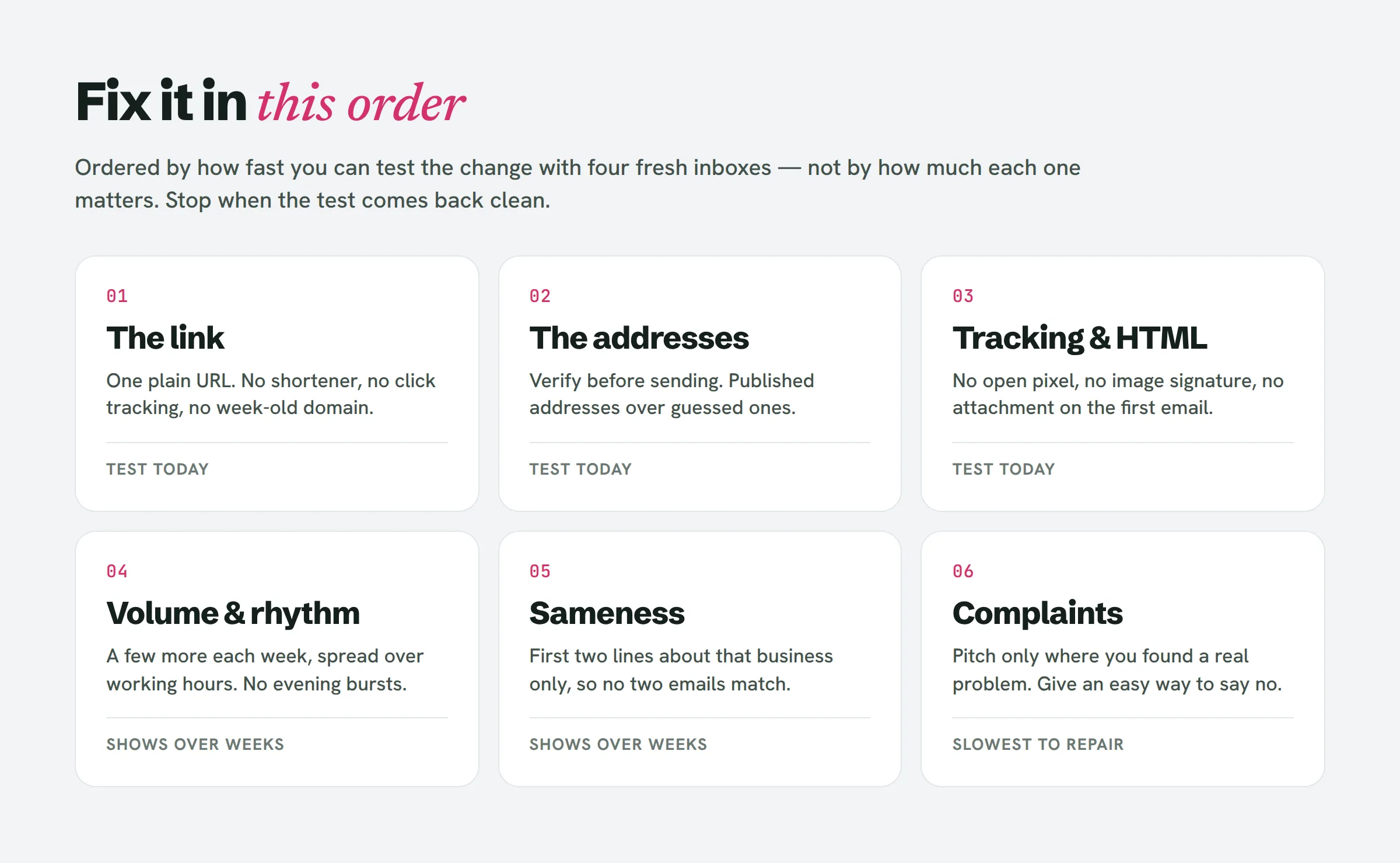
1. The link
Spam filters inspect every domain a message points to, not merely the one it was sent from. One link is enough to drop an otherwise spotless email into spam. Google’s own sender guidelines call for links that are visible and easy to read.
For a web designer this carries extra weight, since the pitch almost always links out to something: a mockup, a prototype, a portfolio. Look at three things:
- No shorteners. A bit.ly-type link masks its destination, and filters hold that against you.
- No tracked links. Mail-merge extensions route your links through their own domain so they can tally clicks. Suddenly your email points to a domain that thousands of other senders share.
- Where the link goes. A domain that was registered last week carries no reputation. The same is true of a free subdomain on a platform anyone, spammers among them, can publish to.
Run the seed test twice: once with the link, once without. If the linkless version lands in the inbox while the linked one doesn’t, the link is your culprit. Where to host the prototype is a separate call. For this test, all you’re after is whether the link is what’s dragging you down.
2. The addresses
Addresses you guess at will bounce. Firing off notes to info@, contact@, office@ across a hundred domains without vetting them means part of your mail heads to addresses that were never real. Bounces are among the sharpest signals that a sender doesn’t actually know their recipients. Vendor guides set the danger threshold near 3%. At twenty emails a day, that works out to under one bounce a day before you cross it.
Pass every address through an email verifier before you send anything. Favor the address a business lists on its own site or its Google Business Profile over one you’ve inferred from a pattern. If you pull leads with LeadReef, every lead arrives with the contacts it turned up attached. Verify those as well before you hit send.
3. Tracking and HTML
Take stock of everything in the message you didn’t actually write yourself:
- Open tracking. The extensions that report “opened 3 times” pull it off by tucking an invisible image into your email. At least one cold email vendor recommends switching it off because it damages deliverability. For ten pitches a day, that count isn’t worth it.
- Signature images. A logo, a headshot and four social icons transform a plain note into a designed HTML email. Stick to a text signature: your name, a single line on what you do, and your site.
- Attachments on the first email. A PDF proposal or screenshot file from someone unknown is precisely the kind of thing filters are designed to distrust. Hold it back until they’ve replied.
4. Volume and rhythm
Gmail sending limits are not your limit
In technical terms a personal Gmail account can push roughly 500 messages a day, and Google Workspace around 2,000. Those ceilings exist to curb abuse, not to be aimed for. Cold outreach guides peg a safe pace for a personal Gmail account at about 20–30 a day.
What counts for more is the shift. An account that sent five personal emails a day for three years and then fires off forty identical pitches in a single evening bears no resemblance to its own past. Google advises a steady rate, no bursts, and a slow ramp in volume. Practically speaking: open with five to ten a day, spread across working hours, and tack on a few more each week.
5. Sameness
Fire the same 120 words at forty people and it reads as bulk mail, no matter how personal it feels to any one reader. The remedy isn’t swapping in synonyms. It’s making the opening two lines genuinely about that business: what you noticed on their site, on which device, and what it’s costing them. The one-opening-line-per-failure method anchors every pitch to something only that business owns. That leaves each message different from the start.
6. Complaints
This lands last because it’s the slowest thing to repair. Google’s line is to hold your spam rate under 0.10% and never touch 0.30%, which amounts to three reports for every thousand messages. Here’s what that translates to for you. At twenty pitches a day, five days a week, you’re sending roughly 400 emails a month. Two “Report spam” clicks in a month already lands you near 0.5%. And with Postmaster Tools off the table, you’ll never actually see that figure.
Your only real defense is your choice of recipients and how simple you make it to decline. Pitch the businesses where you’ve spotted a genuine problem, not every listing across a city. Close with a clear exit, something like “If this isn’t useful, just say so and I won’t write again.” Someone who can answer “no thanks” has far less reason to reach for the spam button.
When to stop fixing Gmail
If you’ve been through all six and the seed test keeps ending up in spam, or you need to send more than 30 a day, it’s time to move to your own domain on Google Workspace. At that point the authentication advice in every other guide finally applies to you, and so does Postmaster Tools. Until then, a clean personal Gmail account sending a handful of careful emails a day is a perfectly solid place to begin.
People also ask
Why is Gmail flagging my emails as spam?
For a personal @gmail.com sender, authentication is almost never the issue, since Google takes care of it. The typical causes are a link to a domain with no reputation or a bad one, bounces from guessed addresses, tracking pixels or heavy HTML, a sudden spike in volume, near-identical messages, or people reporting you. Run a seed test and alter one thing at a time to pin down which it is.
How do I stop emails from going to spam in Gmail?
Test before you touch anything, then fix in sequence: pare the message down to a single plain link with no tracking, verify every address, ditch open tracking and image signatures, send 20–30 a day at an even pace, write the opening lines specifically for each business, and give people a simple way to decline.
Can I send 1000 emails in Gmail?
Not from a personal account. The daily cap sits around 500, and 2,000 on Google Workspace. And you shouldn’t attempt it anyway: a cold outreach pace for a single Gmail account is closer to 20–30 a day.
How to fix an email that keeps going to spam?
Send the very same message to four fresh test inboxes, record where each one lands, then strip out a single element (the link, the signature, the tracking) and send it once more. The moment placement shifts, you’ve located the cause.
The short version
On @gmail.com, authentication is handled for you, which means everything that can go wrong lives in what you send and who you send it to. Measure with four fresh inboxes, tackle the link first and complaints last, and hold the pace to a few careful emails a day.
If you’d sooner begin from a list of businesses that genuinely have something wrong with their site, LeadReef gives you your first 10 leads completely free. Choose from any of 10 business types and 10 locations, and every lead arrives with its website problems flagged and its contacts attached. Paid plans unlock every business type worldwide, in any combination.